User Guide
Overview
TimerCoach provides a comprehensive overview of your training progress. The dashboard gives you quick access to your statistics, recent workouts, and favorites.
The app is divided into 4 main tabs:
Quick Start
Need to start training immediately? The Quick Start card on the home screen gets you moving in seconds.
Timer Controls
Landscape Mode & Big Text
Rotate your device for Landscape mode. Perfect for better readability from a distance.
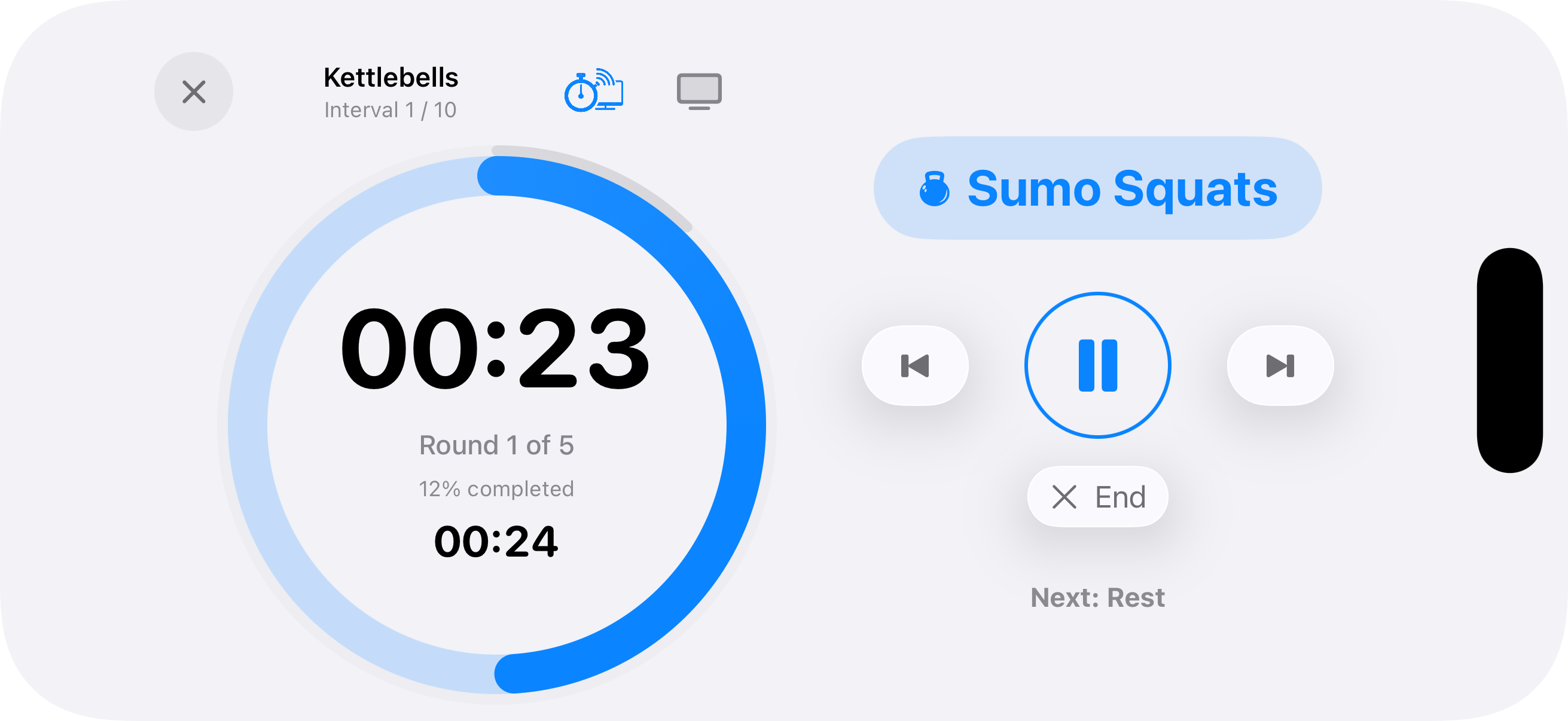
Optimized View: All timer controls and the preview of the next interval remain within easy reach.
Zoom Function: Tap on the current exercise name to maximize the text size.
Smart Camera Overlay 2.0
Perfect your form by using the front-facing camera as a mirror while keeping your timer visible. Version 2.0 introduces adjustable widget styles.
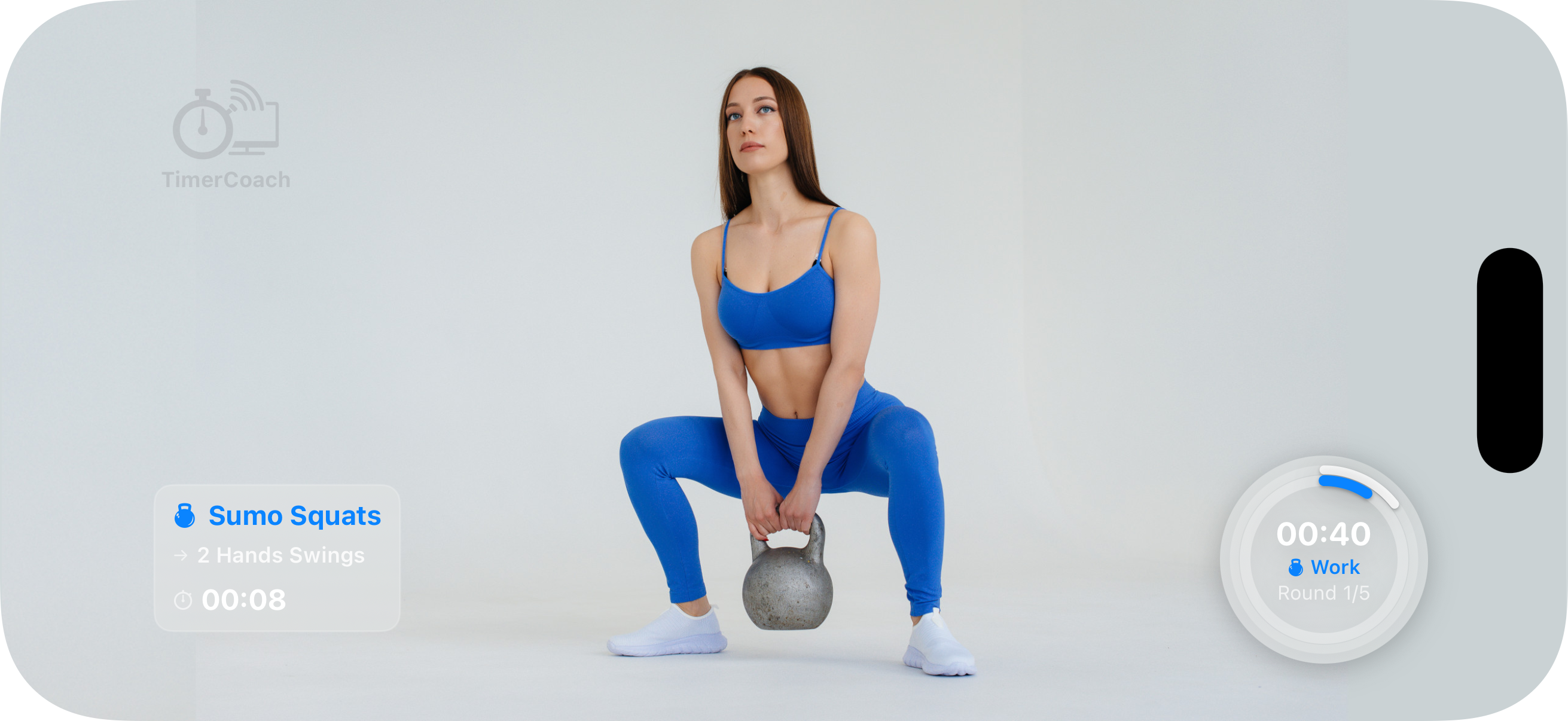
How to use:
Minimal Timer & Lock Screen
For those who want to focus on audio cues or save battery.
Battery & Focus
The timer continues running while locked. You still hear all phase cues and sounds.
Quick Glance
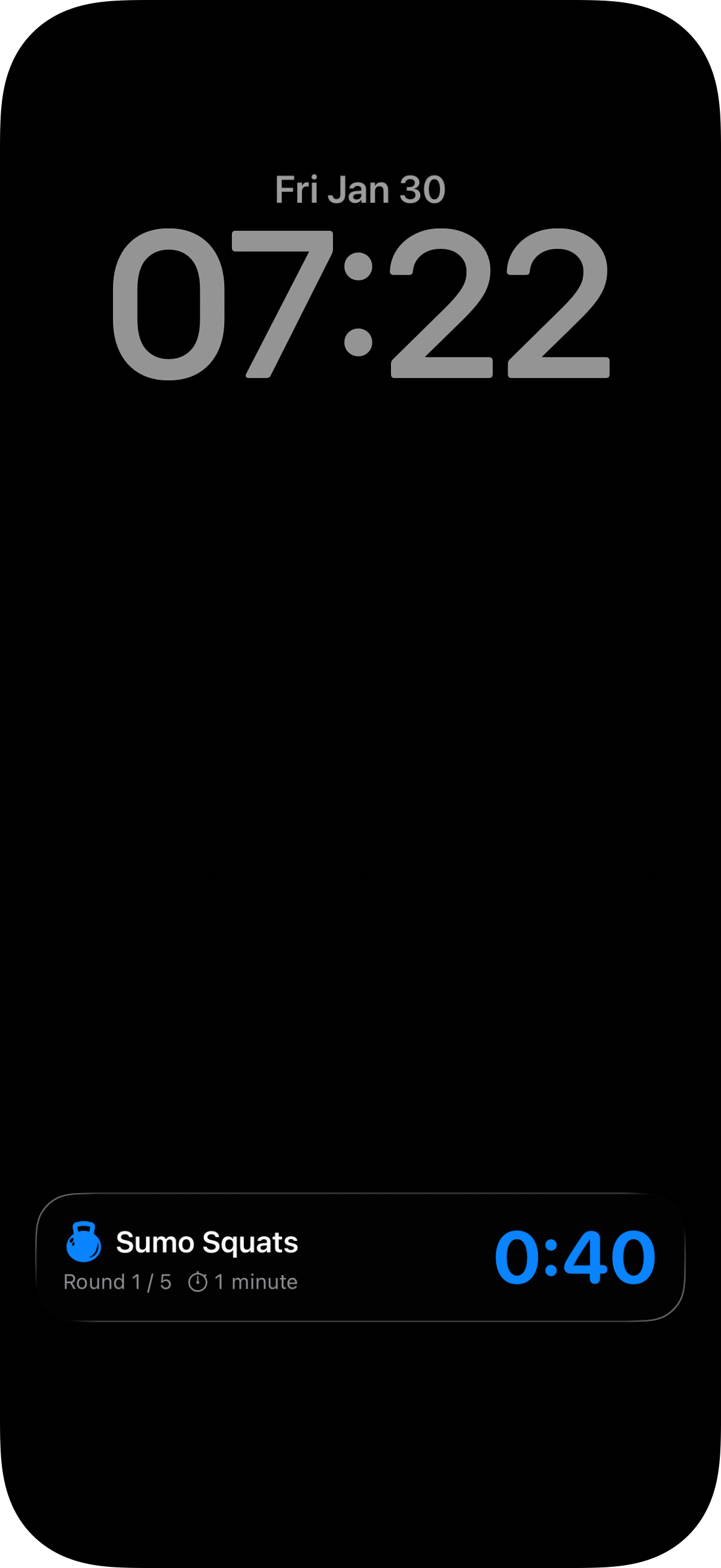
A tap on the dark screen instantly shows the stopwatch, time remaining, and current exercise — without unlocking.
Live Activities
Keep track of your intervals directly from the Lock Screen or Dynamic Island. The timer runs reliably in the background, ensuring you never miss a phase change even when your phone is locked.
TV Timer & Screen Cast
Experience your workout on the big screen.
Custom Workouts
Planning & Schedule
Training Log & Statistics
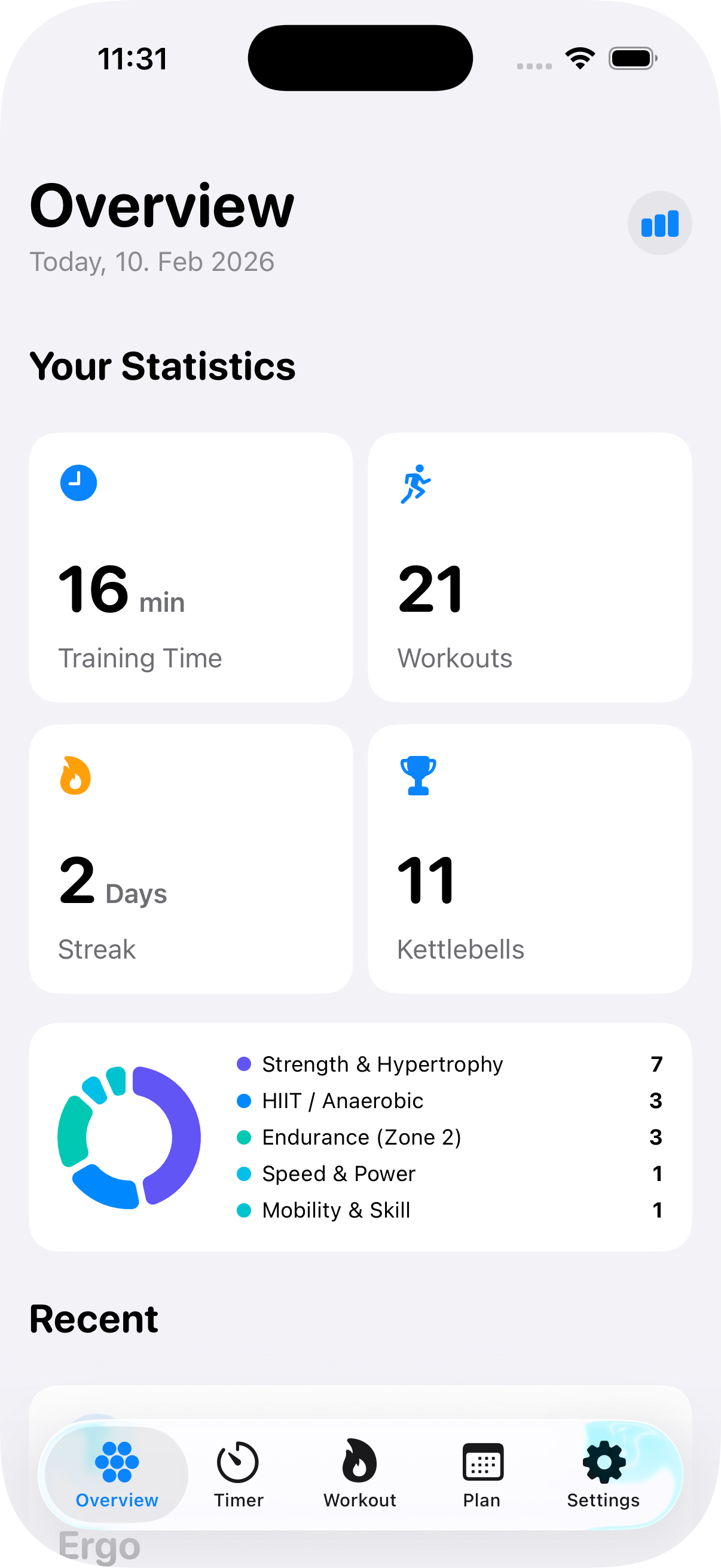
Keep track of your progress. The statistics page shows you exactly how much time you've invested.
Key Metrics
Track total time, workout count, and current streak at a glance.
- Tap 'Workouts' to view your complete training history.
- Tap 'Streak' to compare your longest streak with the current one.
Categories & Distribution
The pie chart visualizes your training mix. Assign categories (like Strength, Cardio, HIIT) and colors to your workouts to see where your focus lies.
Activity Heatmap
Get an overview of your training year. Tap the button in the top right of the Home Screen to access the overview.
Heatmap & Intensity
The calendar view shows your training history. Dark blocks represent completed workouts. Orange blocks mark days with a 5-star workout ⭐.
Detailed Statistics
Switch between weekly, monthly, and yearly views to analyze your training days, workout count, and total time.
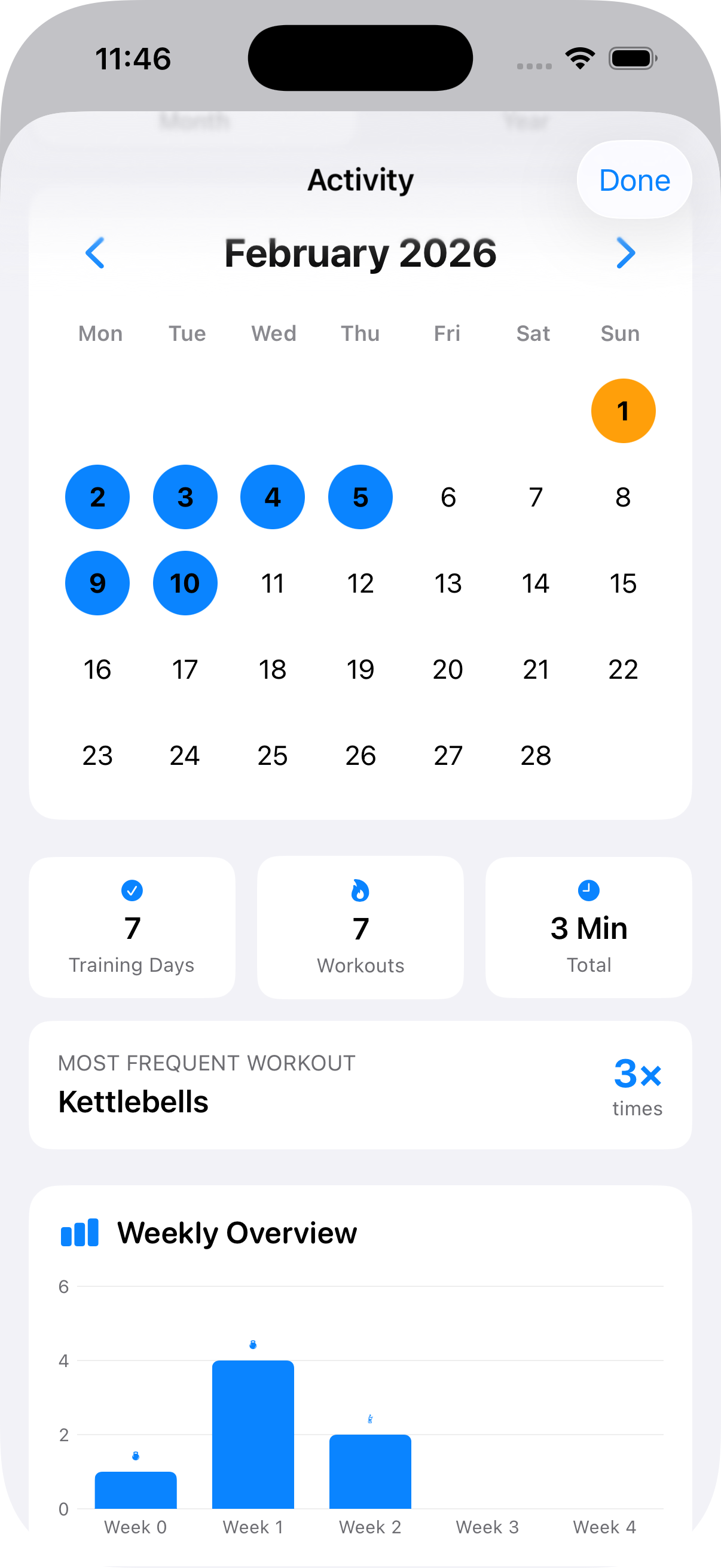
Monthly View
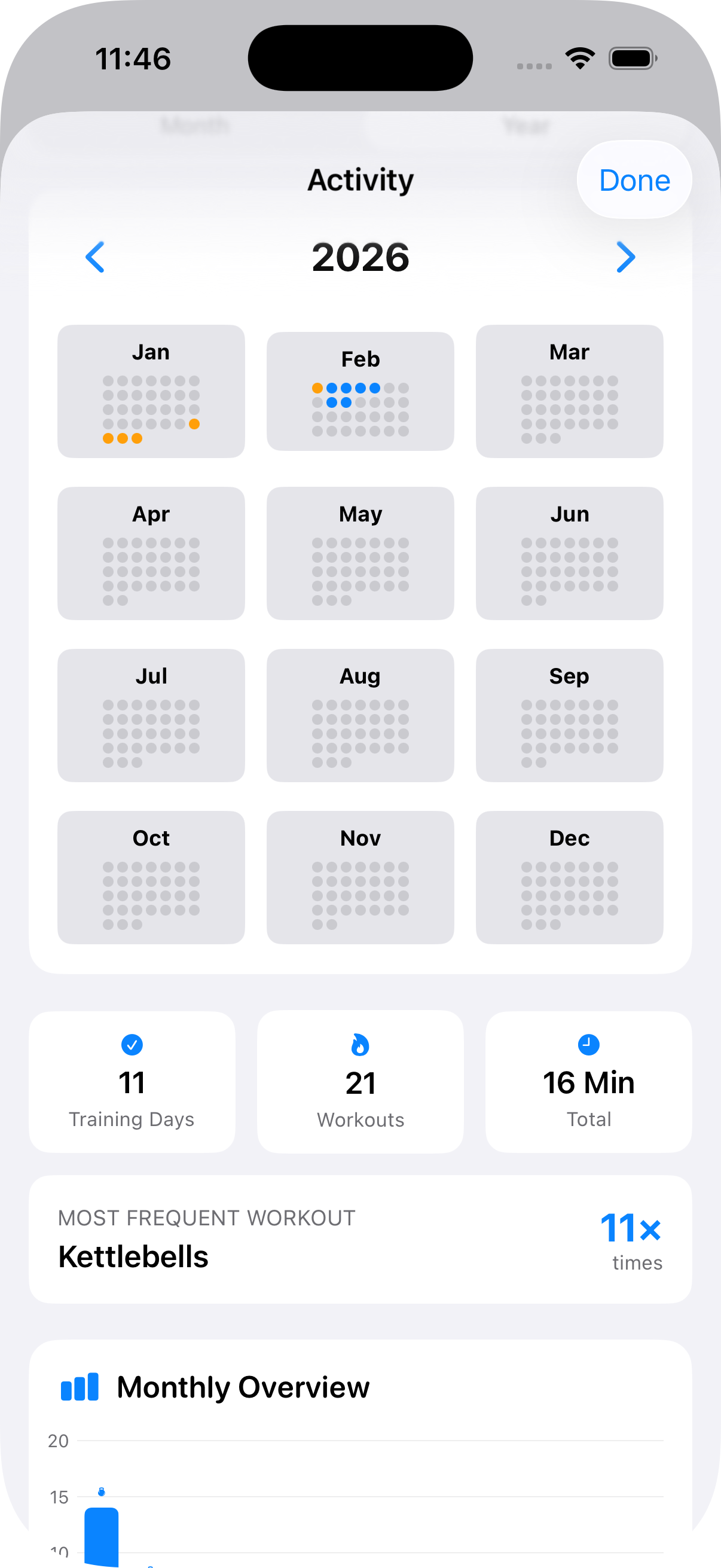
Yearly View